
Mobile · Authentication
Account Verification
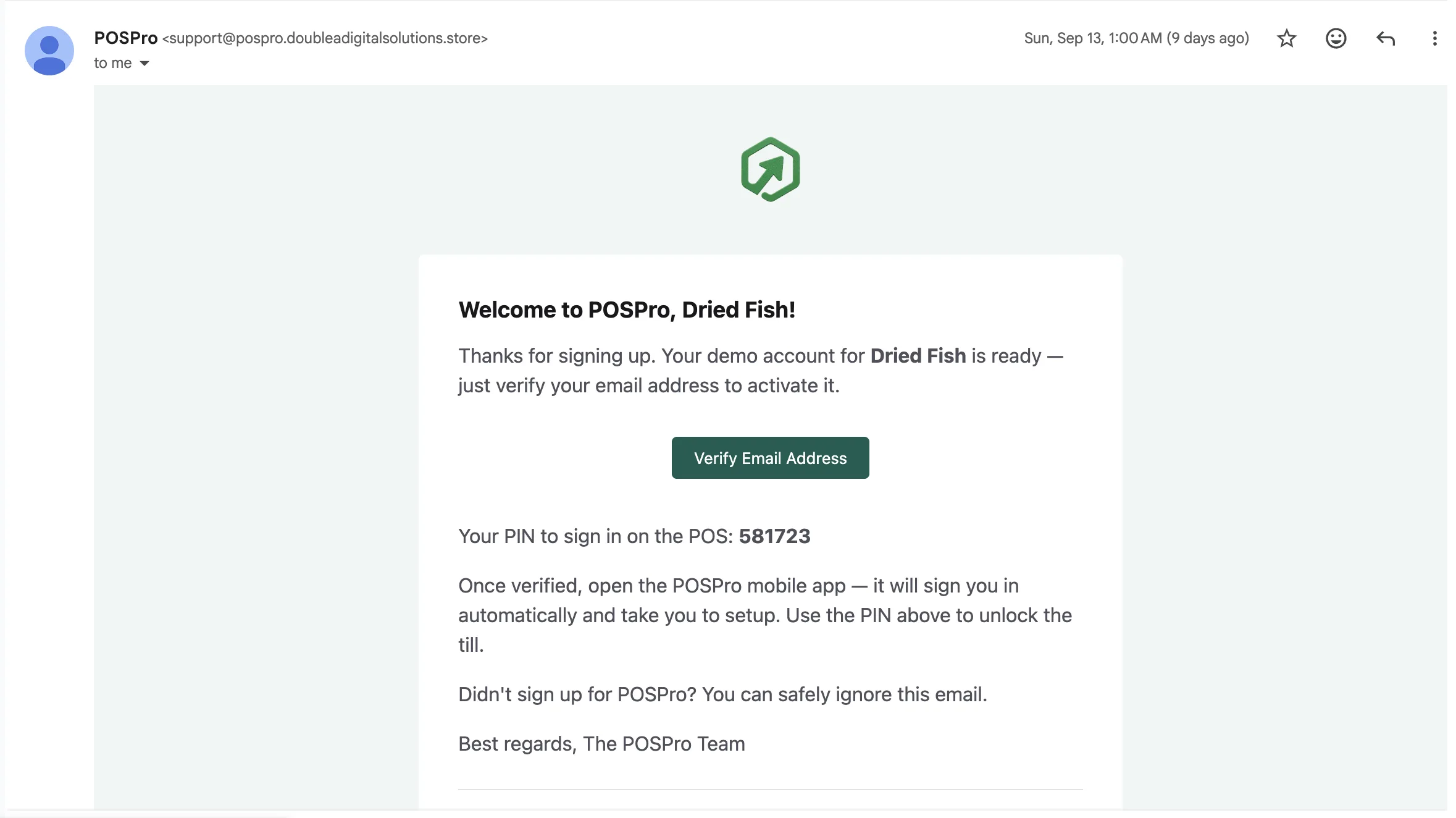
User confirms their email by tapping a link in the welcome email — the same email also contains the PIN used to unlock the POS.
Overview
Confirm the user owns the email they registered with, and hand them the PIN they'll use to unlock the POS terminal — there is no code to type in the app for this step.
- 1App shows a "check your email" notice right after registration
- 2User opens their inbox and taps "Verify Email Address" in the welcome email
- 3Tapping the link activates the account server-side
- 4The same email shows the user's POS PIN (e.g. "Your PIN to sign in on the POS: 581723")
- 5User reopens the POSPro One app, which signs them in automatically and continues to setup
Leads to: Sign-In
Screenshots
1 / 1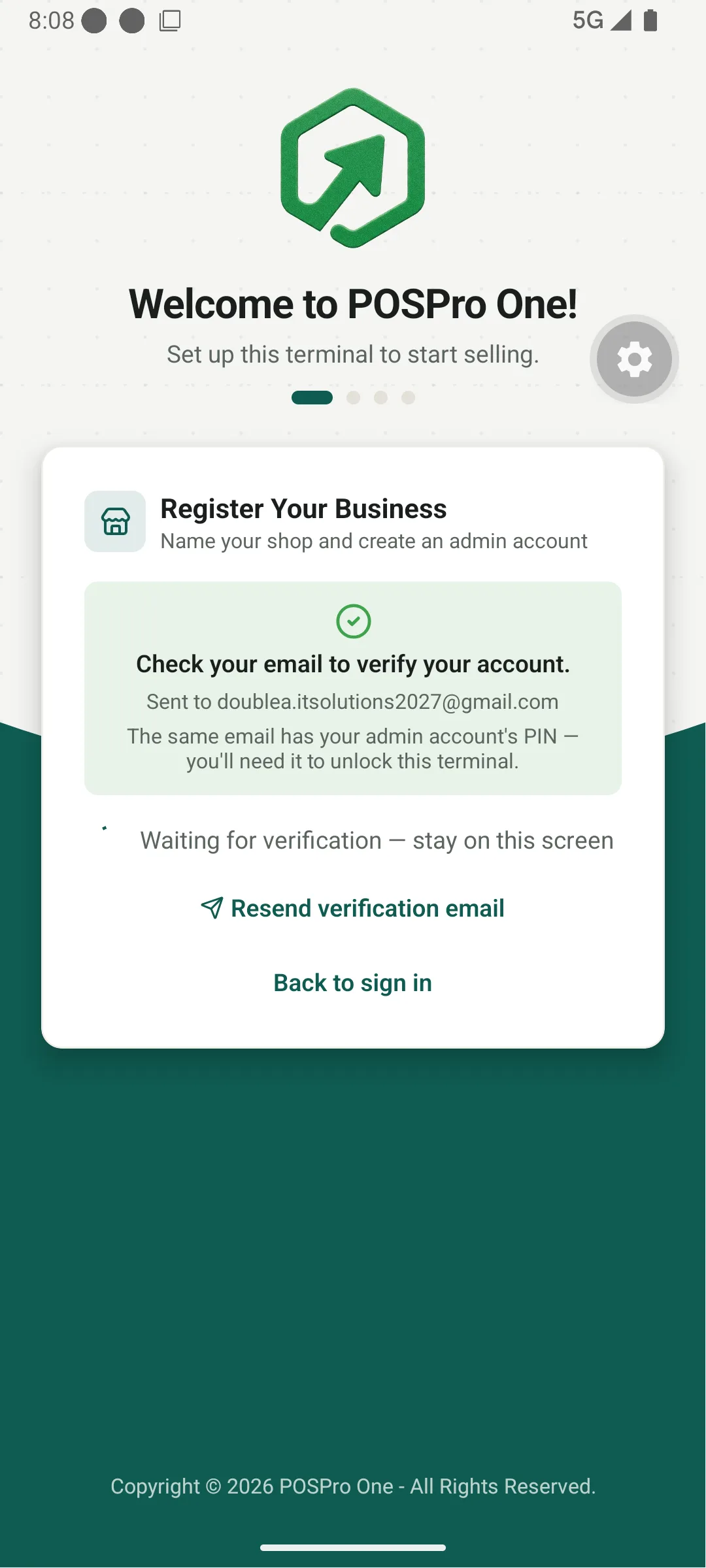
What Happens Next
Components
Check Your Email Notice
"Check your email to verify your account" + the address it was sent to + a reminder that the same email has the admin's POS PIN. No form field here — verification happens by tapping the link in the email, not by typing a code.
Waiting for Verification Status
"Waiting for verification — stay on this screen." App polls/listens for the account to flip to verified and auto-advances once it does.
Re-sends the welcome/verification email if the user didn't receive it.
Lets the user leave this screen and sign in later once they've verified from their email.