
Mobile · Authentication
Sign-In
Returning user logs into an existing, verified POSPro One account.
Overview
Authenticate a returning user and load their business/location context into the app.
- 1User opens app, lands on Sign-In (or taps Sign In from Register)
- 2Enters email and password
- 3Taps Sign In
- 4On success, app loads the user's business/location and lands on the home screen
Leads to: App Home / Dashboard
Screenshots
1 / 1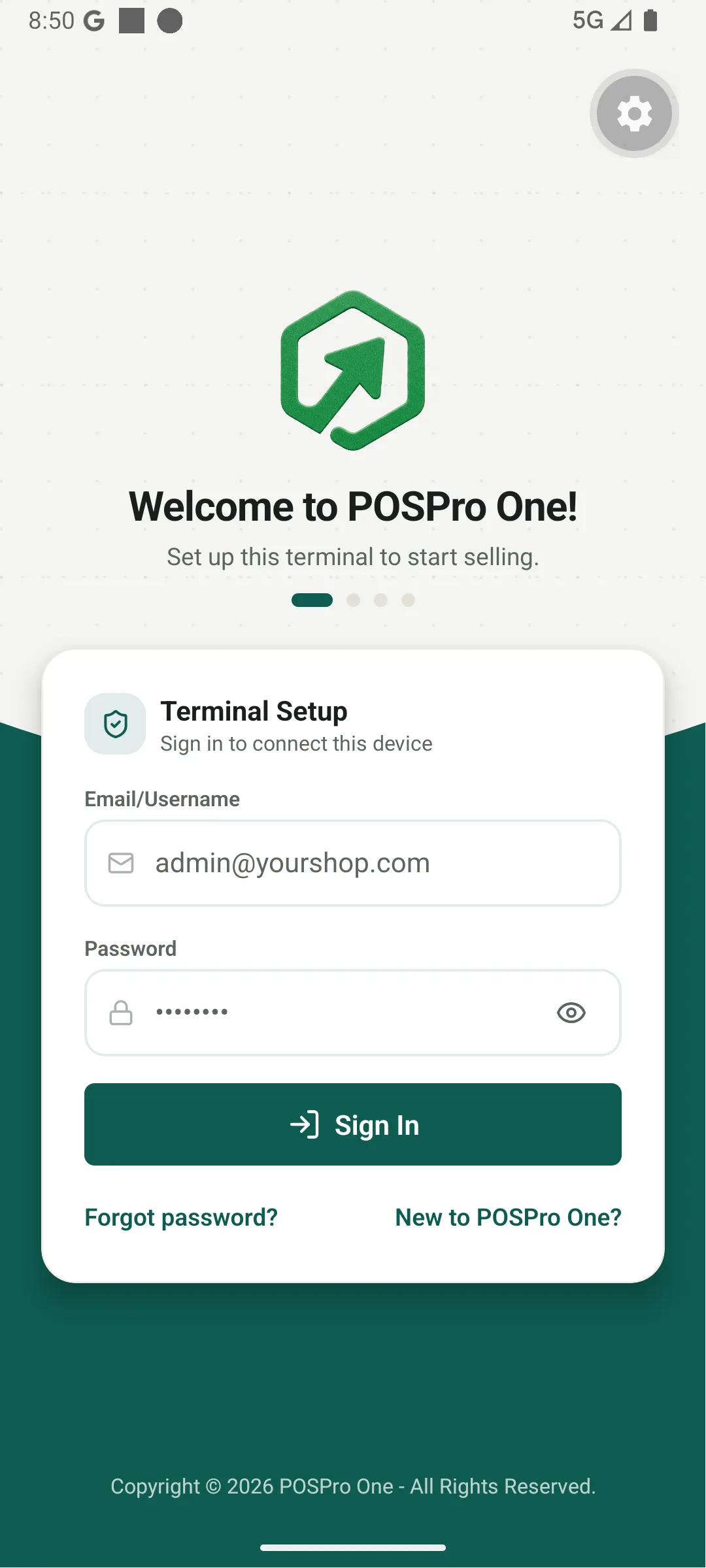
Components
Requirements
- • Required
- • Format: email
admin@yourshop.com
- Please enter a valid email
Requirements
- • Required
Enter your password
- Password is required
Disabled until both fields are non-empty; shows loading spinner during authentication.
Forgot Password Link
Navigates to Forgot Password, pre-filling the email if already entered.
New to POSPro One? Link
Navigates to Register for users without an account yet.